Getting started
Quick start: choose the plugin, customer service system, or both
Decide which WslinkDesk path fits your team and prepare the browser, WhatsApp accounts, and operating roles before rollout.
Short answer: use the browser plugin for one person or a few accounts; use the customer service system when agents share conversations; combine both when you want to keep WhatsApp Web while centralizing customer data and team control.
Interface overview
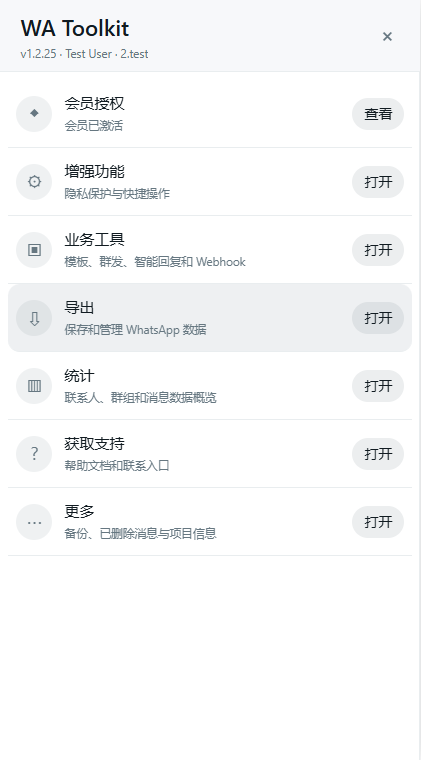
Figure 1: The standalone plugin lives inside WhatsApp Web and groups its tools by workflow.
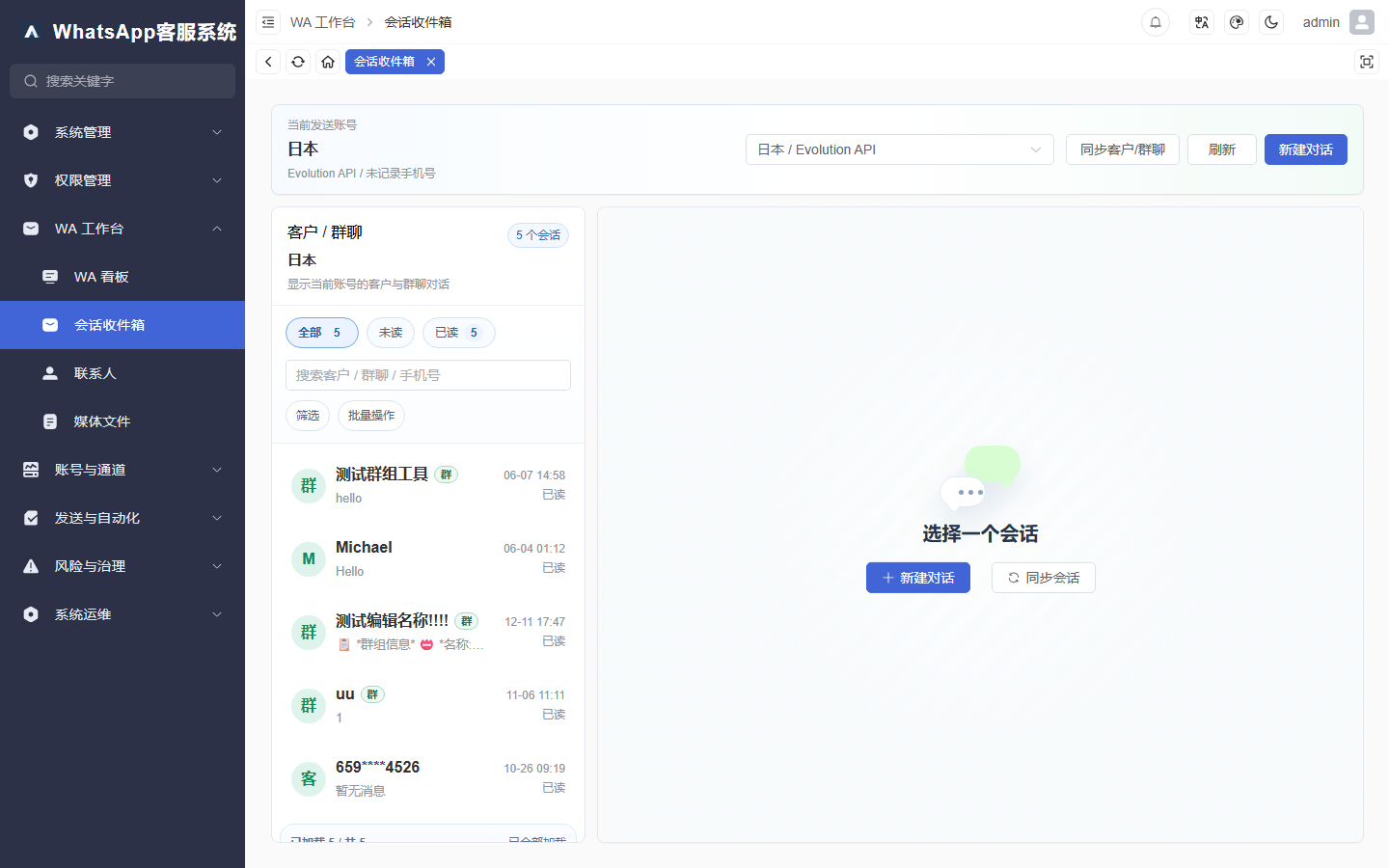
Figure 2: The customer service system brings accounts, conversations, and team collaboration into one workspace.
1. Choose a product path
| Path | Best for | Main capabilities | What you need |
|---|---|---|---|
| Plugin only | Individuals and a few accounts | Templates, campaigns, smart replies, privacy, exports, backups | Chrome/Edge, WhatsApp Web, membership key |
| Customer service system | Multiple agents and accounts | Shared inbox, customer records, ownership, teams, AI, audit | Workspace access, team setup, WhatsApp connection |
| Plugin + system | Familiar WhatsApp Web plus centralized operations | Browser-side execution with shared conversations and CRM | Both sets of requirements and backend connection details |
If you are unsure, write down the number of accounts, number of agents, whether customer records must be shared, and whether supervisors need traceability. Any requirement for shared ownership, handoff, or audit points to the customer service system.
2. Prepare the environment
For the browser plugin, confirm that you have Chrome or Edge 120+, access to https://web.whatsapp.com, an authorized plugin package, and a membership key. Keep the browser and signed-in WhatsApp Web tab open while scheduled activities run.
For the customer service system, an administrator should prepare member accounts, WhatsApp account ownership, team or region grouping, and basic customer stages and assignment rules.
3. Roll out in a safe order
- Install and activate the plugin, or sign in to the customer service system.
- Connect only one or two pilot accounts.
- Send and receive messages with a test contact you control.
- Confirm conversation state, customer data, and delivery results.
- Add templates, assignment rules, smart replies, and automation.
- Expand to production accounts and the full team only after the pilot is stable.
4. Verify success
- The plugin opens inside WhatsApp Web and shows a valid membership state.
- Agents see only the accounts and conversations they are authorized to use.
- A test message succeeds, while failures show a real error instead of false success.
- Every important shared conversation has an owner.
- Customer tags, stages, notes, and next actions persist.
5. Continue with the right guide
- Plugin setup: Install and activate the browser plugin
- Plugin workflow: Templates, campaigns, smart replies, exports, and backups
- Team workspace: Launch accounts, teams, inbox, and customer records
- Combined setup: Connect the plugin to the customer service system
- Problems: Common troubleshooting