Getting started
Install and activate the WslinkDesk browser plugin
Load the plugin in Chrome or Edge, open WhatsApp Web, activate membership, and complete the first usability check.
1. Check the requirements
You need Chrome or Edge 120+, the authorized WslinkDesk plugin package, a valid membership key, and a WhatsApp account that can sign in to WhatsApp Web.
Do not install modified packages from unknown sources. The plugin runs inside WhatsApp Web and stores configuration in browser-local storage, so use only a build supplied by WslinkDesk.
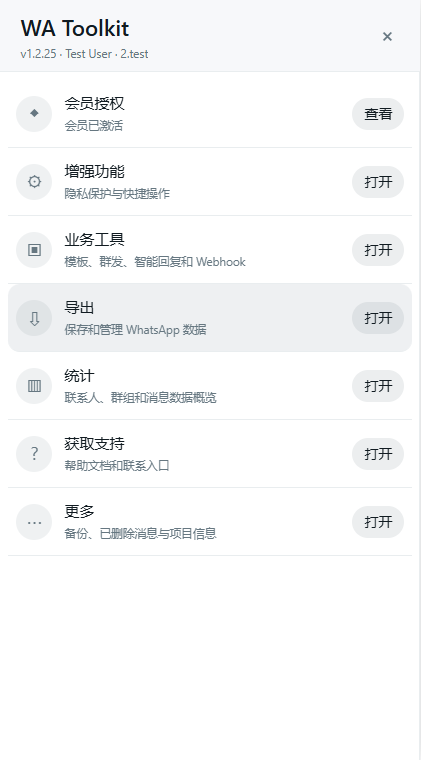
Figure 1: This home screen appears after installation and activation; available entries depend on the current plan.
2. Load the plugin
- Extract the package to a permanent folder.
- Open
chrome://extensionsin Chrome oredge://extensionsin Edge. - Enable Developer mode.
- Select Load unpacked.
- Choose the plugin folder that contains
manifest.json. - Confirm that WA Toolkit appears and remains enabled.
If the browser rejects it, make sure you selected the extracted root folder—not the ZIP file or its parent folder.
3. Open the plugin panel
- Open and sign in to
https://web.whatsapp.com. - Wait until the chat list is visible.
- Select the green “+” entry in the WhatsApp left header.
- If it is missing, use the browser toolbar extension icon and select WA Toolkit.
The first load may require one refresh of WhatsApp Web. If the entry remains missing, use the troubleshooting guide.
4. Activate membership
Open Membership, paste the complete key without spaces or line breaks, and select Activate membership. Wait for an authorized state and confirm that the bound account matches the WhatsApp account currently signed in.
Membership is bound to account and device context. An expired license, disabled account, or device rebind can invalidate an older session. Never share membership keys or connection tokens with unrelated people.
5. Run the first check
Open Enhancements, Business tools, Export, and More. Then create a text-only message template and send it in a test chat you control.
A send is complete only after WhatsApp confirms it. If the interface reports a failure, resolve the displayed cause before sending again.
6. Update safely
Before installing a new build, export a backup. Follow the delivery instructions to replace the plugin directory and select Reload on the extension management page. Reopen WhatsApp Web, then verify membership, templates, and settings.
Normal JSON backups omit backend connection tokens, Webhook Authorization, and custom headers. Recheck Backend connection after an update or migration.