Plugin workflow
Daily plugin use: templates, campaigns, smart replies, exports, and backups
Use the main WslinkDesk plugin tools in a safe order and understand scheduling, attachment, privacy, and backup boundaries.
1. Create a message template
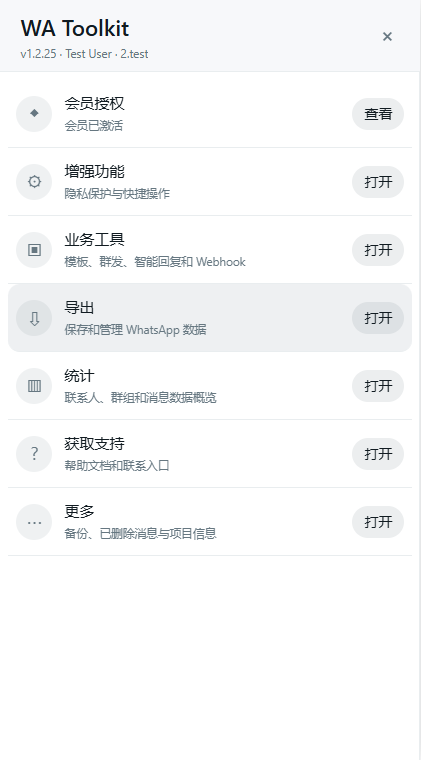
Figure 1: Open Business tools from the plugin home, then choose templates, campaigns, or smart replies.
Open Business tools → Message templates, then create a template with a name, text, and optional media, files, or contact cards.
Each attachment is limited to 16 MB, and all attachments in one template are limited to 32 MB. Test variables, media, and preview in a chat you control before using the template with customers.
Keep human approval for pricing, refunds, contractual promises, account security, and complaints.
2. Run a campaign
Open Business tools → Campaigns and select custom numbers, contacts, groups, labels, or country prefixes. Choose immediate or scheduled execution.
Before production use, contact only recipients who have agreed to receive messages, verify the template with a small list, check number formatting and deduplication, and use a sensible interval. Keep the browser and WhatsApp Web tab open for scheduled execution.
Targets move through pending, sending, sent, or failed. A target is marked sent only after WhatsApp confirms delivery. Investigate failed targets instead of resending the entire audience.
3. Configure smart replies
Open Business tools → Smart replies and choose a trigger such as keywords, attachments, location, calls, join, or leave events. Rules can also be limited by group messages, contacts, time, chats, labels, or countries.
Start with one precise keyword and one reviewed response. After confirming that it cannot trigger unexpectedly, add actions such as delay, labels, stars, archive, or Webhooks.
4. Use privacy and enhancements
Enhancements provide privacy masking and shortcuts. After hiding names, avatars, recent messages, conversation text, or the composer, confirm that the workspace remains usable.
Privacy masking helps with demos, recordings, and shared offices. It is not encryption and does not replace browser security, screen locking, or member permissions.
5. Export data
Export can save contacts, chats, groups, labels, or numbers as CSV, XLS, or TXT. These files contain customer data; store them only in authorized locations and follow your organization’s retention rules.
6. Back up and restore
Use More → Export/import my data to create a JSON backup of templates, campaigns, smart replies, and settings.
Import only JSON produced by a supported WslinkDesk version. Oversized files, invalid structures, and dangerous fields are rejected before existing data changes. Connection tokens, Webhook Authorization, and custom headers are omitted by design and must be reconfigured securely.