Combined solution
Connect the browser plugin to the WslinkDesk customer service system
Use the browser extension channel to connect WhatsApp Web with the shared workspace and verify account identity, realtime state, and messaging.
1. Know when to connect
Plugin-only business data stays in the current browser by default. Connect it to the customer service system when agents need shared conversations, customer records, ownership, permissions, and audit.
After connection, the plugin handles active WhatsApp Web context and browser-side actions. The customer service system owns shared conversations, customer data, and team workflow.
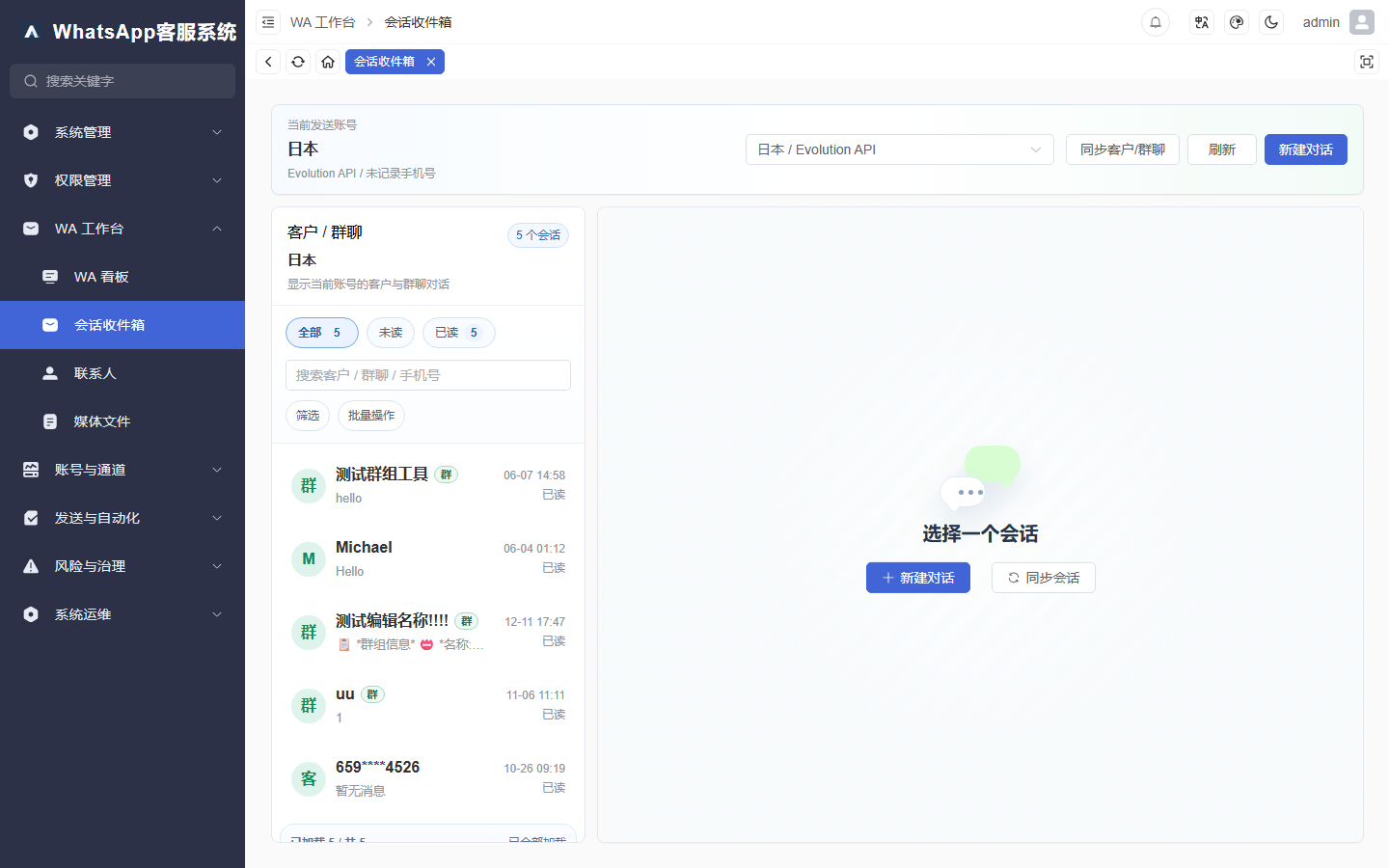
Figure 1: After connecting, verify the account, conversations, and messages in the shared inbox.
2. Prepare the backend connection
An administrator should select or create the WhatsApp account in Account management, choose Browser extension channel, obtain the backend API address and company connection token, and confirm that the current member may manage the account.
The company connection token is a short-lived bootstrap credential, valid for ten minutes by default. Use it only in the target plugin and never distribute it through group chats, screenshots, or public documents.
3. Connect from the plugin
- Sign in to the target WhatsApp account in WhatsApp Web.
- Open the WslinkDesk plugin panel.
- Confirm that Membership is valid and the combined-solution module is available.
- Open Backend connection.
- Enter the backend API address and company connection token.
- Select Save and connect.
- Wait for Backend connected.
The plugin reads the active WhatsApp number and creates or reuses the backend account. After bootstrap, the server exchanges the temporary token for an account- and device-bound session, so normal renewal does not require repeatedly copying the company token.
4. Verify the complete chain
With a test contact you control, send an inbound message, confirm it appears under the correct account in Inbox, reply from the workspace, and verify receipt on the customer side. Then save an owner, label, or note and confirm it persists.
Both inbound and outbound paths must succeed before the connection is considered complete.
5. Understand online state
Two states matter:
- Backend connected means the system can exchange events and commands with the plugin.
- WhatsApp page available means an authenticated, executable WhatsApp Web tab exists.
Closing the browser, suspending the computer, or discarding all WhatsApp tabs makes page execution unavailable. Strict 24×7 operation requires a managed always-on browser, desktop agent, or server-side Provider rather than an employee’s ordinary computer.
6. Reconnect safely
An expired license, disabled account, or device rebind invalidates older sessions. Before reconnecting, confirm the target account and device in the backend, then issue new connection information. Do not repeatedly reuse an expired company token.